Student iCON
Access Google Workspace for learning and teamwork through your Student iCON account.
Student iCON is a Google workspace catered for MOE. It has Google Tools that helps to better support your learning and collaboration with others.
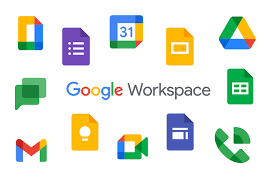
Available Apps
iCON gives access to these tools:
Available apps accessible through Student iCON
|
|
|
|
|
|
|
|
To Learn more about each tool, visit the Google Help Center (opens in new tab).
How to log in
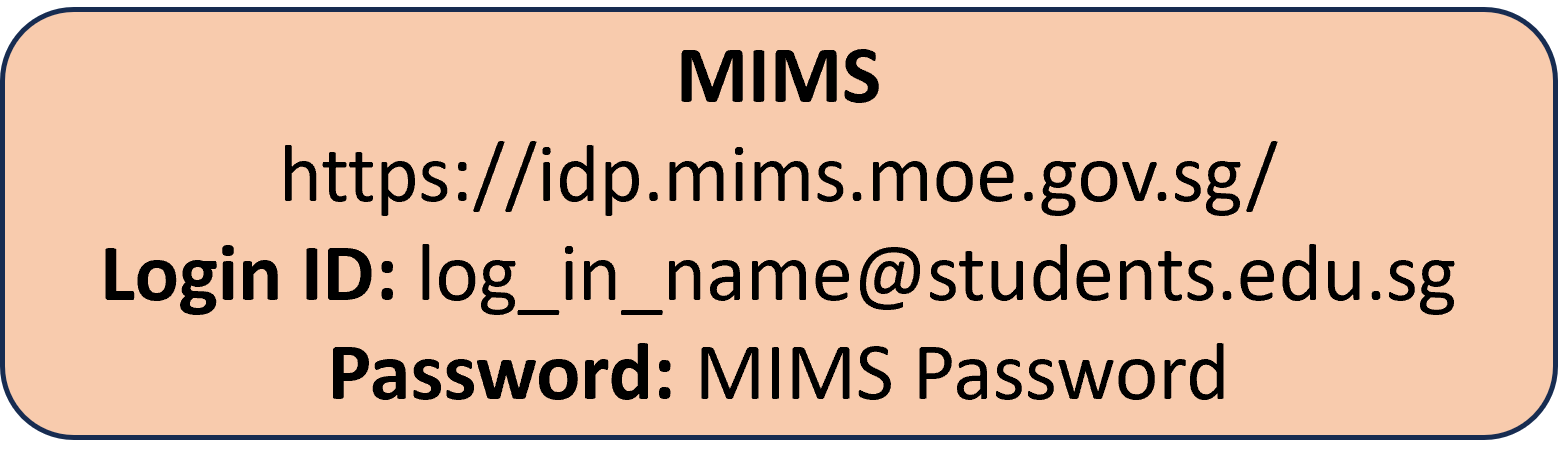
There are 3 ways to access iCON. From the iCON Login (opens in new tab), MIMS Portal (opens in new tab) or Google (opens in new tab). Visit any link and log in with the MIMS Log ID & Password. The guide below is for logging in from Google. *Note: Complete the steps in the Student Accounts page before attempting to log in to iCON.
First Time Log In
Please DO NOT add a phone number or link your account to your Google App for the 2-step Authentication. It is to ease the log in process into School Devices.
Follow this Guide (opens in new tab) to remove the phone number or account from the Google App 2-Step Verification.
Log In Instructions
1) Go to Google.com (opens in new tab) and click on "Sign In" or Click on the Account Image and "Add Another Account" |
2) Enter the MIMS Log In ID and click "Next", it will transfer to the MIMS Portal page. |
3) Enter the MIMS Log In ID & Password and sign in. |
4) A Message will appear asking if you wish to continue as the Logged in user. Click "Continue" |
Forget Password
Visit the Student Accounts page and follow the "Forget Password" steps there.